Tuesday, June 14, 2016

What do you do with Business Cards

After my office / life cleanup, I found that I have 100's of business cards that I have collected over the years from clients, partners, competitors and just random people that I have crossed paths with.

My question to everyone is: What do YOU do with all the cards you collect?

Years ago I use to enter every single one into my Contacts in Outlook (via different mobile apps / direct into outlook) but found that I ended up with over 5,000 contacts, most of which I would not likely contact.  So over the years I started piling these cards up in the boxes that my Business cards came in and only entered the ones (like clients) that I knew I would need in the near future.

Quickly sorting through my current pile of cards, I sorted them into 3 separate piles:

  1. People that I should be in contact with (Example: Clients & Partners)
  2. People that I may contact one day (Examples: Software vendor reps)
  3. People that I don't remember meeting / have no clue why I have their cards

The first group is easy to figure out what to do with, schedule time and make sure their contact info is in / up to date in my Contacts.

The second group is really where I am struggling, do I put the effort into entering these all into my Contacts in Outlook, just leave them as is for future reference, or trash them...

The third group, straight in the garbage can.

Monday, June 13, 2016

GTD Step 2 - Processing the In Tray

"Processing the In Tray" sounds like a big job, and it is, but not in the way I had originally thought it would be.

It took me well over 3 hours to process everything in my in tray(s), most of that time was spent filing papers and documents, figuring out what was on USB / DVD's then what to do with them and just generally figuring out what to do with stuff.  It was exhausting!

A couple of things learnt from this process:

  • My current filing system isn't very efficient / effective for this process
  • A single reference store wont work for me since I have USBs / DVDs that have to be stored in a separate file system.
  • I keep lots of crap I don't need to.
So now that everything this cleaned up (well almost everything) I can spend my energy and focus on the tasks at hand. 

GTD Step 2 - Processing my Email Inbox

Because the number if unread emails now topped 1,800 I decided to see if I could rip through processing them in 2 to 3 hours (I was travailing and had a couple hours in a hotel room before my first meeting) before I processed the my In Tray (which was back in my home office, so I couldn't address it until I returned)

Using the 2 Minute Rule, where if an action will take less than 2 minutes to complete you should (or must) do it immediately or else create a next action task for it, I started reviewing each email, newest to oldest, replying to, creating a task or moving the email into a folder called "Reference Emails" (which I plan to go through later and create some sort of folder structure).

Not surprisingly, id say 90% of the email in my inbox had no action / next step tied to it, it was just there for reference.

I did how ever end up with the following:
 - Replied to 45 emails (2 Minute Rule).
 - Created 5 Next Action Tasks.
 - Had over 50 emails where I was Waiting On someone else.
 - Moved 18 emails to a folder called "Review Later", mostly blog articles / videos.
 - Deleted 300+ emails with no values.
 - 28 emails that I need to unsubscribe from.

GTD - My Inbox Empty - Step 2 Processing your inboxWhen I was all said and done, I now only had 18 emails in my Inbox (those emails that had arrived while I was processing the rest of them) which I was able to process quickly and for the first time that I can remember, I had an Inbox down to zero emails (3 more came in while I was taking the screen shot, which will be processed later when I have time)


Friday, June 10, 2016

GTD Step 1 - The Mind Dump

This was the part of the process I was least looking forward to, but it turned out to be pretty easy and quite eye opening on how much I have commented to / planned to get done.

I spent about 45 minutes entering "Projects" directly into Outlook (decided to go this way to start) then took a short break and sat out on my deck with pen and paper and continued to write out projects for another hour.

Once everything was written out I spent about 30 minutes entering the paper based "Projects" into outlook and creating "Tasks" for projects that had next steps that I could do (did a number of 2 Minute Rule Tasks as well)

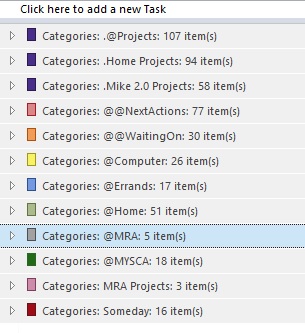
Here is the final counts from the mind dump and existing current projects / tasks:

Projects


  • 107 .@Projects
  • 94 .Home Projects
  • 58 .Mike 2.0 Projects (Self Improvement / Vacations / Etc)
  • 3 MRA Projects
  • 16 Someday

Tasks:


  • 77 @@NextActions
  • 30 @@WaitingOn
  • 26 @Computer
  • 17 @Errands
  • 51 @Home
  • 5 @MRA
  • 18 @MYSCA

Ok... that is a lot of stuff to get done, but it is stuff I already had to get done, now its just all in one place and organized so I can attack it without having to worry if I have missed anything.

I still haven't processed my physical In Tray, which I am sure will create a pile more projects & tasks that will be added to my lists, but for now this is a good start.

My plan is to finish processing the physical In Tray before my first weekly review, but if I don't get around to it, it can wait (it has waited list long, whats another couple of days.)

Thursday, June 9, 2016

GTD - Outlook Lists Setup


Ok the next step before Processing my In Trays and email Inbox is to setup Outlook Categories as my GTD Lists

To start with I am gong with the following:
    - 10 Task Lists
    - 5 Project Lists

The difference between a project and a task is a task is a next action that would complete that task and a project is something that would require multiple tasks to complete.

I'm sure this will change / expand / contract over the next couple of weeks, but here is a breakdown of my "Lists" and the naming convention I believe I will end up using.

Lists:

1) @@NextActions:  This will be my list of next physical actions that can be completed anywhere and anytime.  I went with the double @ to ensure it was at the top of the Lists list.

Examples of @@NextActions:
  • Review and Post next GTD Blog post
  • Email customer about issue resolution
2) @@WaitingOn: This is my list of items I am waiting on actions from for other people.  I plan to BCC myself on any email that requires someone else to act on, then I can create a Task with that email as an attachment to ensure I have the right info associated with the task.

Examples of @@WaitingOn tasks:
  • Name - Action - Date
  • Bob - Create document for client X - June 7, 2016
3) @Agendas:  This is supposed to be used for notes on upcoming meetings, not sure if I will actually utilize this one, but created it and will see how it works for me.

4) @Calls: Calls that need to be made, pretty self explanatory.

5) @Errands: Things that need to be done as I am out and about.

6) @Home: Actions related to my ".Home" projects.

Examples of @Home Tasks:
  • Home - Repair - Hang plant
  • Home - Repair - Fix Deck
  • Home - Garden - Weed back garden
  • Home - Organize - Equipment Room
7) @MRA: tasks related to my board position with the Manitoba Ringette Association

8) @MYSCA: Tasks related to MYsock.ca business

9) @Personal: Tasks related to my personal life

Examples of @Personal Tasks:
  • Mike 2.0 - Finance - Review Investments
  • Vacation - Rushing River - Book Campsite
  • Beer - Keg Wheat Beer (use due date)
10) Someday:  Projects / Tasks that I will get around to "Someday"

Examples of Someday:
  • Vacation - China
  • Mike 2.0 - Learn French
  • Beer - Become certified BJCP Beer Judge

Projects:

1) .@Projects: This is a list of current (work related) projects that must be reviewed on a regular basis to ensure I stay 100% on top of.  I used the .@ to ensure it stayed in top of my lists and project lists.

Examples of .@Projects:
  • Client X - RFP
  • Training - Certifications
2) .Home Projects: These are projects related to my house that can include repair and organize.

Examples of .Home Projects:
  • Home - Repair
  • Home - Organize
  • Home - Garden
3) .Mike 2.0 Projects: Mike 2.0 is what I am calling anything that would be considered self improvement or under one of my hobbies.

Examples of .Mike 2.0 Projects:
  • Mike 2.0 - Health
  • Mike 2.0 - Finance
  • Mike 2.0 - Education
4) MRA Projects: These are larger projects that I will be working on for the MRA.

GTD Step 1 - Physical Collection

If you are familiar with the GTD methodology, you know the first step is to collect everything physical around your office, house, car, EVERYWHERE that you may have tried to use as a reminder to do something and put it all in one In Tray.

GTD - My In Tray - Getting Things Done
Since I knew I had a lot of stuff laying around my office, car and house, I decided to improvise my first In Tray and use a pretty large and deep cardboard box for the initial collection.  I will use the more standard plastic In Tray once I get through the initial collection and processing of physical things, but for now this seems to work best.


After about an hour of initial collection, I needed to add a second, much larger box and ended up finding a number of very interesting things.
GTD - My In Tray Full - Getting Things Done
1) I found about 300 pages of blank computer paper that I had piled up in different piles.
2) 2 iPods that were dead / needed new music.
3) 18 flash drives that I wanted to see what was on the.
4) about 150 CD/DVD that had collected around my office.
5) Cables, lots and lots of cables.

Next step is doing a mind dump of everything (and again I mean everything) that is on my mind and that I am trying to remember to do (like post this blog).  I am going to use the suggested method of utilizing pen and paper for this and try to write down every current and future test or project that is currently weighing on my mind (examples, this project, upcoming vacation, unresolved issues at a client) and then during the processing phase convert these pages to Tasks & Projects in Outlook .  I am hoping / planning to do this in the afternoon so, with any luck I will have another update on my process later this evening or tomorrow.

GTD - Lily Dog - Not helpful in the collection process - Getting Things Done
Side Note:  This is my dog Lily and she was NOT helpful at all in the collection process.
I suggest if you have a dog (puppy in my case) you keep it out of your collection area.  I had to keep her out of my office after the 3rd time she pulled something out of the pile and ran away with it.
Cute, but not productive!

GTD Tools

Since I am always on the move, the tools that I choose to utilize in my GTD journey have to be ultra mobile, extremely easy to input data and accessible almost anywhere (both online and offline).

I am considering the following 4 tools for this process:

  1. Microsoft Outlook 2013: This is the tool that I get the majority of my "work" information through, so it only makes sense to see if I can utilize it for this process.  It will be a bit of a challenge at first to separate "Tasks" & "Projects" from the "Reference" emails, but its something that I working on in my head to figure out the best way to implement.  This also carries over to my mobile device seamlessly via Nine Mail for android (although I'm not convinced ont he Task capabilities as of yet of Nine). I know there are some GTD plugins and some setup guides for Outlook, but at moment I want to try and setup everything as simply as possible. Once I am more involved in the method I can look for specific plugins / add-ons that will address the specific issues / needs that I have.
  2. EverNote: Is a great tool and would (at least the paid version) would probably fit everything that I will require, but I really do not like the desktop client for this software.  Also, since this is another peiece of software that I will have to open to enter tasks (there is an email into option) and review what tasks need to be completed there is a chance of it not being reviewed as regular as it should be.  If Outlook wont fit the bill I will probably move to EverNote.
  3. doit.im (http://doit.im/) is built on the GTD method so everything thing is already there for you.  My major concern with this tool will be the ease of getting tasks into it and logging into it regularly from my desktop to review the tasks at hand.  If I do move to a more dedicated task, project & goal management platform doit.im will probably be the one.
  4. Wunderlist: When I first started the Getting Things Done book, I was 100% convinced that I was going to use Wonderlist for this process, but after seeing doit.im, there really is no comparison between the 2.